


Conjuror documentation
Everything you need to move faster on your Mac, without leaving the keyboard.
Getting started
Install with Homebrew
Install the latest alpha from the Conjuror Homebrew tap:
brew install conjuror-app/tap/conjuror@alpha
Homebrew installs Conjuror in your Applications folder. To install a newer alpha when one is available, run:
brew upgrade conjuror-app/tap/conjuror@alpha
Install manually
- Download Conjuror. Get the free alpha from the Conjuror download section.
- Open the ZIP file. Double-click the downloaded archive to extract Conjuror.
- Move it to Applications. Put Conjuror in your Applications folder, then open it.
After installing with either method, open Conjuror and press ⌥ + Space to show the launcher from anywhere on your Mac.
The essentials
| Keys | Action |
|---|---|
⌥ + Space | Show or hide Conjuror |
↑ ↓ | Move through results |
← → | Move through the emoji grid |
Tab | Cycle through Applications, Apple Shortcuts, Emoji, and Files modes |
Return | Open, copy, or run the selection |
Escape | Clear the query, or close Conjuror when the query is empty |
Four modes, one launcher
| Mode | How to enter it | What Return does |
|---|---|---|
| Applications | Type normally, or start with ; from another mode | Opens the selected app or copies a calculation |
| Apple Shortcuts | Start with > | Runs the selected Shortcut |
| Emoji | Start with : | Copies the selected emoji |
| Files | Start with / | Opens the selected file or folder |
Press Tab to cycle through Applications, Apple Shortcuts, Emoji, and Files. You can also type a mode prefix at any time: ; for Applications, > for Apple Shortcuts, : for Emoji, or / for Files. The prefix is removed from the search query.
Launcher basics
Press ⌥ + Space to show Conjuror, then start typing. Use the arrow keys to select a result and press Return to open, copy, or run it. Conjuror hides after completing the action.
To change the main shortcut, open Settings → Apps and record a new key combination. Apple Shortcuts, Emoji, and Files each have a shortcut in their own Settings pane. Their defaults are ⌥ + ⇧ + Space, ⌥ + ⇧ + E, and ⌘ + ⇧ + F.
To change how the launcher looks, open Settings → General and choose Launcher appearance. Standard is the default. Minimal uses tighter spacing and smaller result rows, and hides the footer.
While the search field is active, you can use the standard shortcuts for copy, paste, cut, select all, undo, and redo.
Use the menu bar item to open Settings or quit Conjuror.
Applications
Start typing any part of an application’s name. Conjuror searches your installed apps, including user-facing menu bar apps such as Keychain Access and Passwords, and uses recent launches to order similarly matched results. The results update when app folders change.
When Conjuror finds separate installations of the same app, it lists each one. It uses the app filename, and sometimes its folder, to distinguish copies with the same name.
Use ↑ and ↓ to select an app, then press Return or click the result to open it. Background-only apps, embedded helpers, and Conjuror itself do not appear in the results.
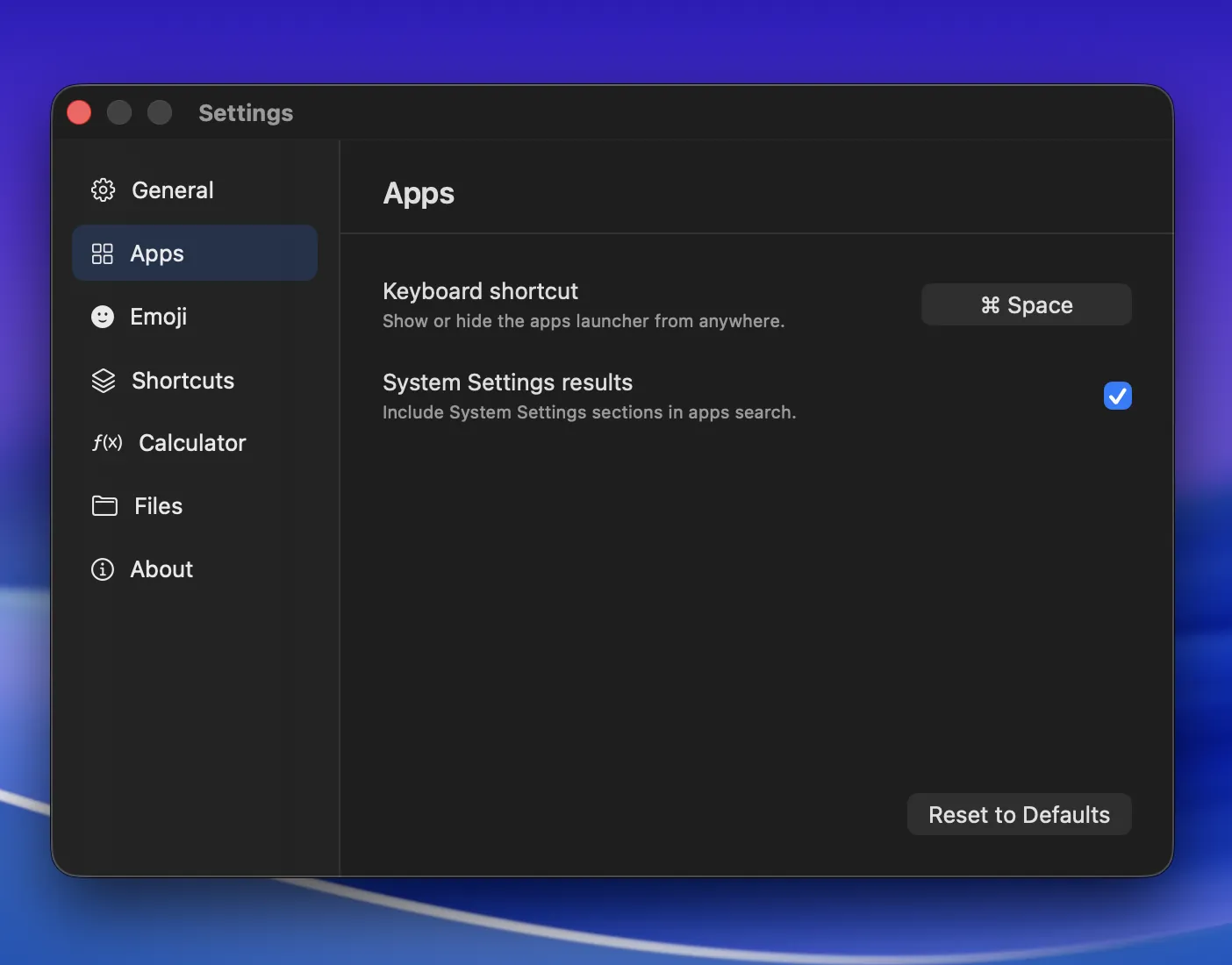
Applications mode also includes sections from System Settings. Search for a section such as Bluetooth, Displays, or Software Update, then open it to go directly to that pane. These results are on by default; turn off System Settings results under Settings → Apps if you only want applications.
Files and folders
Type / to switch to Files mode, then enter at least two characters from a file or folder name. Each query word is matched independently, and its letters only have to appear in order: a short query such as qtr rpt can find “Quarterly Report”. Exact names and prefixes rank ahead of looser fuzzy matches.
Conjuror searches items indexed by Spotlight that macOS allows it to access. Hidden items do not appear.
Use ↑ and ↓ to select a result, then press Return or click it. Files open in their default app; folders open in Finder. Search stays on your Mac.
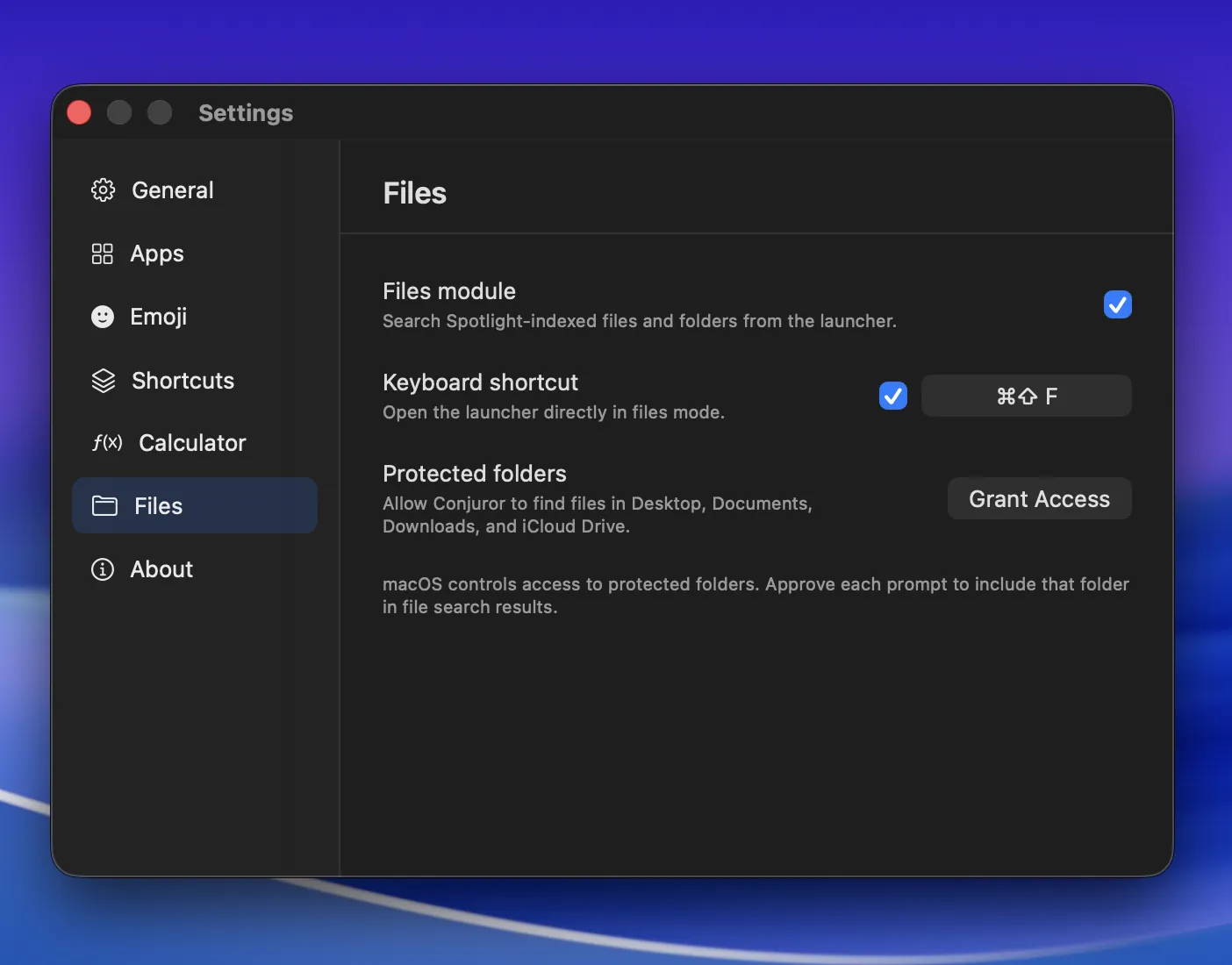
Desktop, Documents, Downloads, and iCloud Drive are protected by macOS. Conjuror requests access when you first run a file search. You can also open Settings → Files, choose Grant Access, and approve the prompts for any of those folders you want included in results.
Use ⌘ + ⇧ + F to open Conjuror directly in Files mode. You can turn this shortcut off or record a different key combination under Settings → Files.
To remove Files mode from the launcher, turn off Files module in the same Settings pane.
Calculations
Type a calculation while you’re in Applications mode. When Conjuror has an answer, it appears above the application results. Select it and press Return, or click it, to copy the answer and close the launcher.
A plain decimal number on its own or an unfinished expression remains an application search.
Arithmetic
Enter arithmetic with symbols or words. Conjuror supports parentheses, powers, percentages, mod, pi, e, sqrt, abs, implicit multiplication, and operators such as plus, minus, times, divided by, and over.
2 plus 3 times 4
100 + 15%
20% of 50
2pi
Percentage changes apply in sequence, so 123 + 25% + 10% produces 169.125. To apply both percentages to the original value, group them with parentheses: 123 + (25% + 10%) produces 166.05.
Number bases
Use to, in, ->, or → to convert an integer between decimal, hexadecimal, octal, and binary. You can use the full base names or shorten them to dec, hex, oct, and bin.
255 to hex
0o377 to binary
0xFF
-42 to hex
Hexadecimal, octal, and binary answers use the standard 0x, 0o, and 0b prefixes. For negative values, the minus sign appears before the prefix.
Units
Use to, in, ->, or → to convert a quantity to a specific unit. You can also add or subtract compatible units and enter composite quantities such as 5 ft 3 in. Conjuror supports length, mass, duration, temperature, volume, and decimal or binary data units.
10 km to miles
10kg + 500g
30 °C to °F
5 ft 3 in
100 lbs
If you omit the target unit, Conjuror chooses a common counterpart. For example, it converts pounds to kilograms, centimetres to inches, or miles to kilometres. US customary volume units use US definitions.
Relative dates
Enter a duration followed by from now or ago to calculate a relative date. You can use minutes, hours, days, weeks, months, or years. The answer includes the resulting local date and time.
5 days from now
1.5 hours from now
2 weeks ago
You can use decimal values for minutes, hours, days, and weeks. Use whole numbers for months and years.
Timezones
Enter a 12-hour or 24-hour time and use to, in, ->, or → to convert it between timezone abbreviations recognised by macOS.
10:00 BST in EST
9am GMT → PDT
1:00 pm in PDT
If you omit the source timezone, Conjuror starts from your Mac’s current timezone and applies its daylight-saving rules for the current date.
Currencies
To convert currencies, first enable Currency conversion under Settings → Calculator. You can then enter ISO currency codes or common symbols and use to, in, ->, or → to choose the target currency.
100 USD to EUR
$50 in GBP
20 EUR → ¥
1 CAD
If you omit the target currency, Conjuror uses the currency from your regional settings. It downloads a complete rate snapshot from Frankfurter daily after a successful refresh; failed requests may be retried sooner. Your search text is never sent. The latest snapshot remains available offline, and disabling currency conversion removes the cached rates.
Emoji
Type : to switch to Emoji mode, then search by emoji name or common keyword. For example, lol finds 😂 even though the word is not part of its Unicode name. Results include gender and skin-tone variants from the latest Unicode catalog.
Use all four arrow keys to move through the grid. Press Return, or click an emoji, to copy it and close the launcher.
Leave the search empty to see recently copied emoji first. To apply the same skin tone to supported emoji automatically, choose one under Settings → Emoji. Searching for a specific skin tone shows that variant instead.
Apple Shortcuts
Type > to switch to Apple Shortcuts mode, then search by name or subtitle. Use ↑ and ↓ to select a Shortcut, then press Return, or click the result, to run it.
Recently run Shortcuts appear first when the search is empty and can rank higher among similar matches. Shortcuts that require input do not appear in the results.
Settings
Open Settings from the menu bar item, or press ⌘ + , while Conjuror is active. The window opens on your currently active macOS Space.
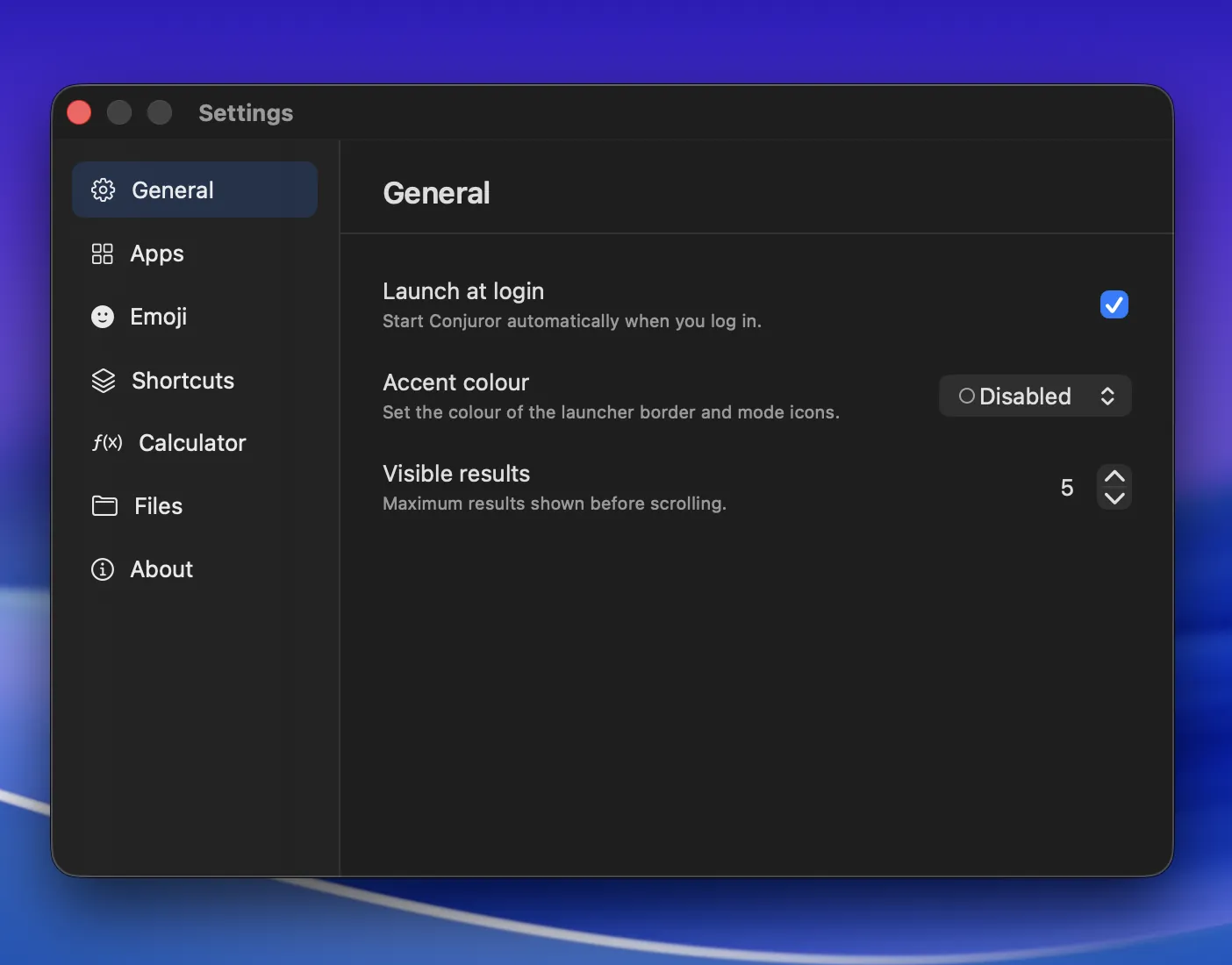
- General: Turn launch at login on or off, choose the launcher appearance and accent colour, and set how many results appear before scrolling. Accent choices include Cyan, Purple, Yellow, a custom colour, or Disabled.
- Apps: Change the main launcher shortcut and choose whether application search includes System Settings sections.
- Emoji: Configure the shortcut that opens Emoji mode directly and choose the skin tone Conjuror applies to supported emoji by default.
- Shortcuts: Configure the shortcut that opens Apple Shortcuts mode directly.
- Calculator: Turn optional currency conversion on or off.
- Files: Turn file and folder search on or off, configure its direct shortcut, and request access to the protected Desktop, Documents, Downloads, and iCloud Drive locations.
- About: Check the installed version or open the GitHub repository and licence.
The visible-results setting accepts values from 3 to 10. Launch at login is off by default. If macOS requires approval after you enable it, use Open Login Items Settings to finish the setup.
Use Reset to Defaults under Apps to restore all keyboard shortcuts, the accent colour, the visible-results setting, and the preferred emoji skin tone.
Permissions
To search and run Apple Shortcuts, allow Conjuror to control Shortcuts Events when macOS first asks. This Automation permission is only required for Apple Shortcuts mode.
File search uses the on-device Spotlight index. macOS may ask before Conjuror can access Desktop, Documents, Downloads, or iCloud Drive; you can trigger those prompts from Settings → Files.
Currency conversion uses the network to refresh an exchange-rate snapshot daily; failed requests may be retried sooner. Your search text is never sent, and the latest rates remain available offline.
Application, file, folder, and emoji search, arithmetic, unit conversion, relative dates, and timezone conversion stay on your Mac and do not require network access.